
What to Do When Your Website Is Hacked or Shows a Security Warning
Website security incident response starts with containment, malware removal, safe recovery, and prevention. Disconnect affected services when possible, save evidence, change administrator passwords, and contact a website security professional. Check files, databases, plugins, themes, hosting accounts, and user lists for malware or unknown access. Restore a verified clean backup only after finding the entry point. Then update the software and improve your security settings. A Not Secure warning usually means the site lacks valid HTTPS or has mixed content. It doesn't always mean the site was hacked. Monitor the site after recovery, request search-engine reviews when needed, and keep automatic backups, updates, and security checks running.
How Can You Tell if Your Website Has Been Hacked?
A hacked website may show malware warnings, strange redirects, changed pages, or unknown administrator accounts. It may also contain spam, load slowly, or show unusual traffic. Search engines, browsers, hosting providers, or customers may spot the problem first. Treat several warning signs as a security event that needs quick attention.
One sign may have a simple cause, such as a broken plugin or expired certificate. Several signs together can point to a hacked website. Write down what visitors see, when the change started, and which pages or accounts seem affected.
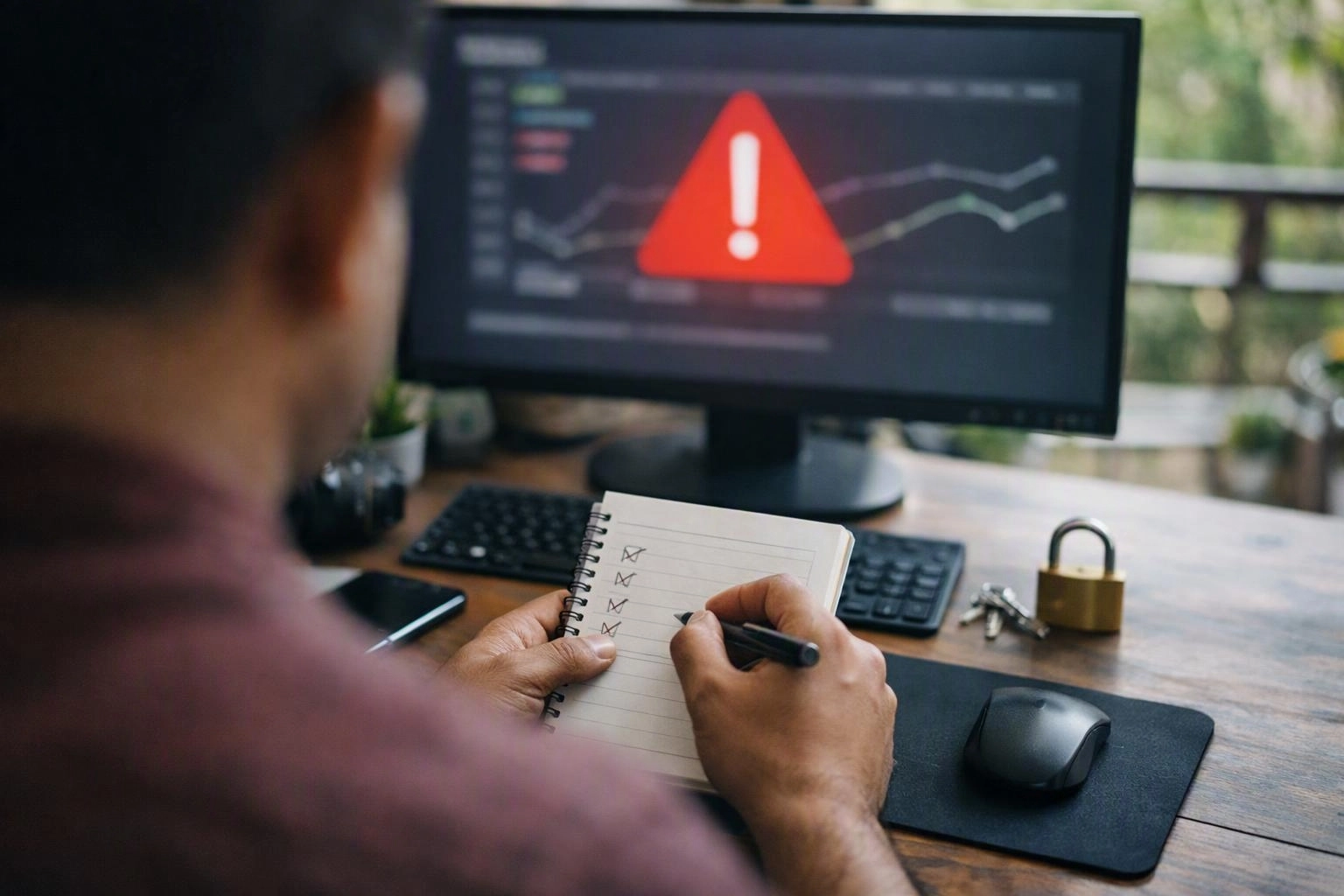
What Commonly Causes a Website Hack?
Most website attacks start with outdated software, stolen access, or a weakness in the hosting setup. Small businesses may not have an internal security team. As a result, updates and access checks can get missed until an attack becomes visible.
- Outdated CMS software may contain known flaws that attackers actively search for.
- A weak plugin, theme, extension, or custom module may allow unsafe uploads or remote code execution.
- A weak password, reused password, phishing message, or stolen session may expose administrator access.
- A hacked hosting account may affect several websites, databases, email accounts, and control-panel users.
- Cross-site scripting can add browser code that steals sessions or changes what visitors see.
Other causes include unsafe file permissions, exposed backups, insecure APIs, old extensions, and malware on an administrator’s device. A web development company or security technician should find the original entry point. Fixing only the visible damage may leave the site open to another attack.
What Should You Do Immediately if Your Website Is Hacked?
Start by isolating the hacked website, saving logs and suspicious files, changing passwords from a clean device, and notifying the hosting provider. Don't keep editing infected files before saving evidence. Early changes can hide how the attack happened and make recovery harder.
Stay calm and limit access while you gather the facts. If the site handles forms, payments, bookings, or customer data, consider temporary maintenance mode. Follow any privacy or contract duties that apply to your business.
For a small business with limited resources, contact the hosting provider first. Then contact a website security professional if access is lost, customer data may be exposed, or more than one site is infected.
How Do You Fix a Hacked Website?
A hacked website is fixed by finding the entry point, removing harmful code and unknown users, checking files and databases, updating software, and closing the weakness. A full cleanup should also review hosting access, scheduled tasks, server logs, and security settings.
Start with a list of website files, database tables, plugins, themes, users, cron jobs, server accounts, DNS records, and third-party connections. Compare files with trusted vendor packages or a known-clean copy. Check for hidden PHP files, JavaScript injections, encoded code, backdoors, phishing pages, and harmful database entries.
Don't rely on a visual check. A page may look normal while harmful code sits in an upload folder, configuration file, template, or scheduled task. Check database users, stored scripts, spam content, redirects, and changed settings.
After cleanup, update the CMS and remove unsupported plugins or themes. Reinstall extensions from trusted sources when their safety is uncertain. Reset administrator passwords, remove unknown users, fix file permissions, and check other sites on the hosting account.
Layered protection lowers future risk. A web application firewall blocks many harmful requests before they reach the site. Malware scans, rate limits, secure headers, login protection, and server monitoring add more protection. Test forms, logins, checkout pages, redirects, and email before going fully live.
Cleanup isn't finished until the cause is fixed. If the CMS weakness remains, a clean-looking site can become infected again. Our team explains each change and lists the maintenance steps your site needs.
Why Does Your Website Show a Not Secure Warning?
A website shows a Not Secure warning when the browser can't verify a valid HTTPS connection. Common causes include a missing, expired, or misconfigured SSL/TLS certificate. HTTP resources can also create mixed content. The warning doesn't prove hacking, but insecure forms and content should be fixed quickly.
HTTPS encrypts traffic between a visitor’s browser and the server. The SSL/TLS certificate helps confirm that the connection uses the correct domain. It also shows that the certificate hasn't expired. Problems can follow a domain change, wrong DNS records, failed renewal, or incomplete server setup.
Mixed content appears when an HTTPS page loads images, scripts, stylesheets, fonts, forms, or frames over HTTP. Browsers may block those resources or show a weaker warning. Replace hard-coded HTTP links and check third-party tools for HTTPS support.
Set an HTTP redirect to the HTTPS version after testing the certificate. Update the CMS address, canonical URLs, sitemap, internal links, cookies, and integrations. An HTTPS warning differs from malware, although both issues need prompt attention.
| Visible issue | Likely check | Recommended action |
|---|---|---|
| Not Secure beside the domain | Certificate and HTTPS configuration | Renew, install, or correctly configure the certificate |
| Some resources blocked | Mixed content | Replace HTTP resource links with HTTPS links |
| Malware or deceptive-page warning | Files, database, redirects, and search status | Contain, scan, clean, and request a security review |
Can a Website Backup Restore a Hacked Website?
A website backup can restore a hacked website when the restore point predates the attack and contains clean, complete files and database records. Check the backup before publishing it. Restoration doesn't remove the weakness that allowed the attack, so review passwords, plugins, themes, hosting access, and monitoring afterward.
Choose a restore point from before the first suspicious change. It should include both website files and the database. Restoring only one may leave harmful users, redirects, or settings behind. Make sure the backup is complete, readable, isolated, and stored off-site.
Backup quality matters more than backup quantity. Scan files, inspect database records, compare core files with trusted versions, and test the restore in staging when possible. Don't overwrite the live site until the recovery copy works and appears clean.
Most small-site recovery jobs take several hours to a few business days. Timing depends on the file count, log quality, database size, and available hosting access. This range helps with planning, but it isn't a guaranteed completion time.
After restoration, change passwords, patch the CMS, remove risky extensions, review server access, and add monitoring. Good Website Backups
How Can You Prevent Your Website from Being Hacked Again?
Website owners can prevent repeat attacks by installing updates, using unique passwords and multi-factor authentication, limiting user access, keeping tested off-site backups, and watching login and file activity. A web application firewall and malware scanning add another layer of protection.
Prevention works best as regular website maintenance. Small businesses without security staff should assign someone to handle updates, backup checks, account reviews, and incident response. Clear ownership keeps these tasks from being forgotten.
Our Website Security process can work with scheduled maintenance. Patches, scans, backups, and access reviews then happen on a set schedule. This approach helps protect customer forms, business records, search rankings, and daily operations.
When Should You Ask a Website Security Professional for Help?
A website security professional should help when malware returns, admin access is lost, or several sites share one hacked hosting account. Get help if customer data may be exposed or search engines flag the domain. Specialist support can handle containment, investigation, cleanup, restoration, and monitoring.
Act quickly if the site processes payments, stores personal information, sends email, or supports important bookings and sales. A professional can save evidence before making changes. They can also tell the difference between malware and an HTTPS setup error.
Help is useful when a small business lacks time or staff to inspect files, databases, logs, hosting accounts, and DNS. If the hosting environment is hacked, cleaning one site may not be enough. Ask the hosting provider about account isolation and contact an incident response specialist when needed.
When search engines report malware or phishing, clean the site first. Then use Google Search Console’s security review process. Keep records of the cleanup, because the review should follow verified repairs.
Website Security in Bhubaneswar can support businesses that need practical help without hiring an internal security team. Choose support that explains the findings clearly and links recovery work to business continuity.
What Should You Check After Your Website Is Recovered?
After recovery, test the website on different devices. Confirm HTTPS and redirects, review accounts and logs, scan files and databases again, test forms and transactions, and check search-engine status. Also verify that backups can be restored. Regular maintenance helps spot reinfection before it harms visitors or business operations.
Use a clean browser and network to test the home page, landing pages, contact forms, login areas, checkout steps, downloads, and email alerts. Confirm that HTTP redirects to HTTPS correctly. Check that no mixed content remains.
Review CMS users, hosting users, database accounts, SSH or FTP keys, API tokens, scheduled tasks, DNS records, and third-party integrations. Check post-recovery logs for login attempts, new files, redirects, or outgoing spam.
Run another security scan and request a Google Search Console review if the domain was flagged. Make sure uptime monitoring is active and alerts reach someone who can respond. Test a recent website backup in a safe environment instead of assuming it works.
Ongoing maintenance should include patching, account reviews, malware scans, backup checks, certificate renewal checks, and security testing. These steps make recovery easier if another problem occurs.
Author: Debasis Sahoo
Questions About Web Development Company
What Should I Do if My Website Is Hacked?
Isolate the site, save logs and suspicious files, change administrator and hosting passwords from a clean device, and notify the hosting provider. Then arrange a full investigation and cleanup. Don't delete evidence or restore an unverified backup before finding the entry point.
How Do I Fix a Hacked Website?
Find the entry point, save evidence, remove malware and unknown users, inspect files and database records, update the CMS and extensions, reset passwords, and close the weakness. Review hosting access, scheduled tasks, logs, and security settings before publishing the cleaned site.
Why Does My Website Show a Not Secure Warning?
The browser can't verify a valid HTTPS connection. Common causes include a missing, expired, or misconfigured SSL/TLS certificate, an incorrect HTTP redirect, or mixed content. The warning doesn't automatically mean the site is hacked, but insecure forms and resources need prompt correction.
Can a Website Backup Restore a Hacked Website?
Yes, when the restore point predates the attack and its files and database are complete and clean. Check the backup and use an isolated restore when possible. Then patch the CMS, change passwords, review hosting access, and add monitoring because restoration doesn't remove the original weakness.
How Can I Prevent My Website from Being Hacked Again?
Apply CMS updates, use unique passwords and multi-factor authentication, limit permissions, keep tested off-site backups, monitor logins and file changes, scan for malware, and use a web application firewall. Regular maintenance and a clear response plan help small businesses act before a small issue becomes a major outage.
For help with recovery, monitoring, or ongoing Website Backups, contact our team.
Get a Free EstimateRelated Resources
Website Security Mistakes Businesses Make and How to Prevent Them
common website security mistakes businesses make
What to AvoidDomain and Hosting Mistakes to Avoid for a Business Website
domain and hosting mistakes to avoid
What to AvoidWebsite Maintenance Mistakes That Lead to Downtime and Data Loss
website maintenance mistakes to avoid
What It CostsHow Much Does Website Development Cost in Bhubaneswar?
website development cost Bhubaneswar